
While working with PDFs whether for presentations, lecture notes, assignments, or anything else do you find yourself struggling to find the right PDF editing app? If so, take a pause.
Today, working with PDFs should not mean switching to ad-filled online tools that upload your files to unknown servers. You now have offline PDF Editors like Systweak PDF Editor. It makes editing and working wth PDFs easy.
I recently tested this affordable and reliable PDF editor for Windows that handles everything from merging lecture notes to annotating papers, redacting sensitive information, password-protecting files, signing digitally, filling forms, and more, without making you switch between apps.
Don’t trust what I say? To explain, here is an in-depth article about my findings on how Systweak PDF Editor simplifies students’ lives. Unlike online / web-based tools that require uploading your files, this PDF editor is 100% offline. There are no pop-up ads, no data trails.
By the end of this walkthrough, you’ll see why I recommend Systweak PDF Editor as the best PDF tool for students and researchers affordable, reliable, and refreshingly simple.
Why Systweak PDF Editor Is My Top Pick for Students & Researchers?
Regardless of the profession you are in, if you are working with PDFs, you know editing them can get messy. I’ve been there and wasted time moving from one tool to another to compress, convert, edit, and merge PDFs, making them submission and sharing ready.
That’s when I downloaded and used Systweak PDF Editor, and it stood out to me. Unlike other editors, it is simple to use, affordable, and powerful student-friendly software for editing PDFs.

Key Features That Help Streamline Workflow – Students and Researchers
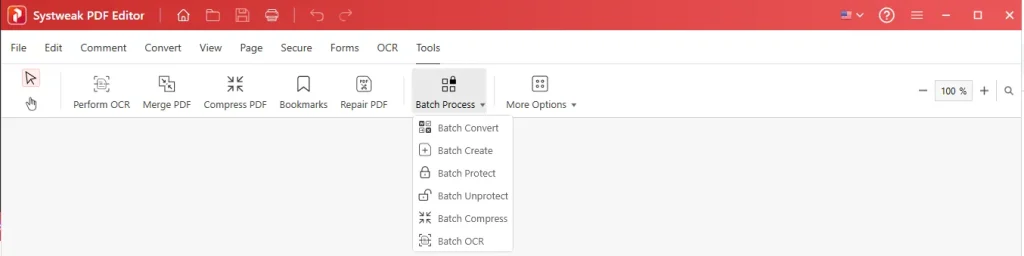
- Annotation & Batch Tools: I used these tools to highlight, underline, or add sticky notes directly. Not only this, there is a batch-processing feature, using which I performed batch-create, compress, protect, unprotect, and OCR operations on PDFs.

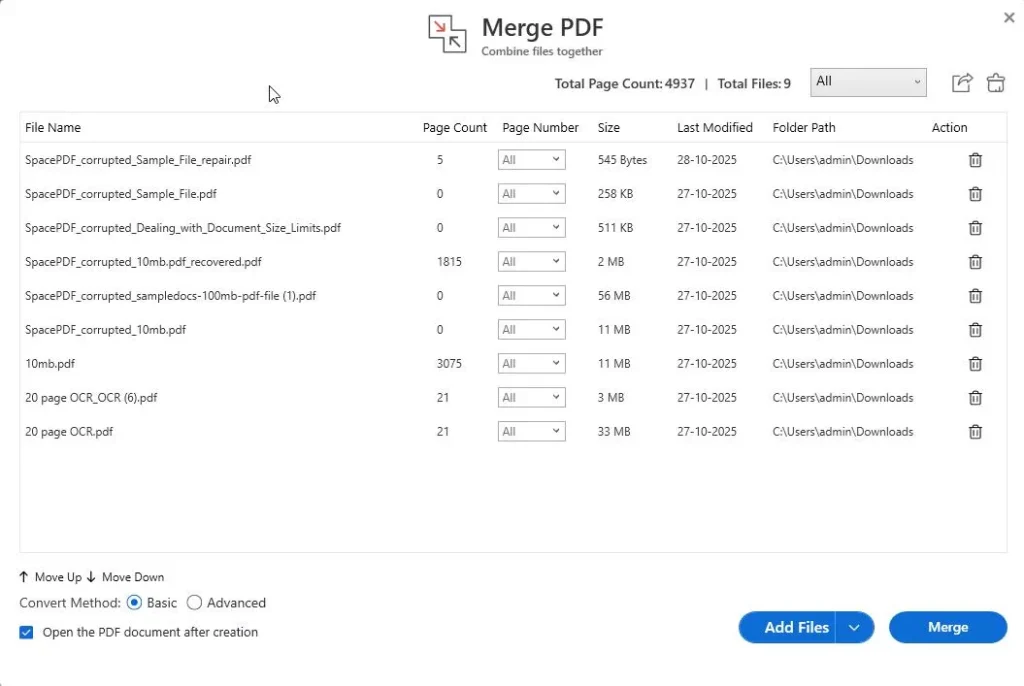
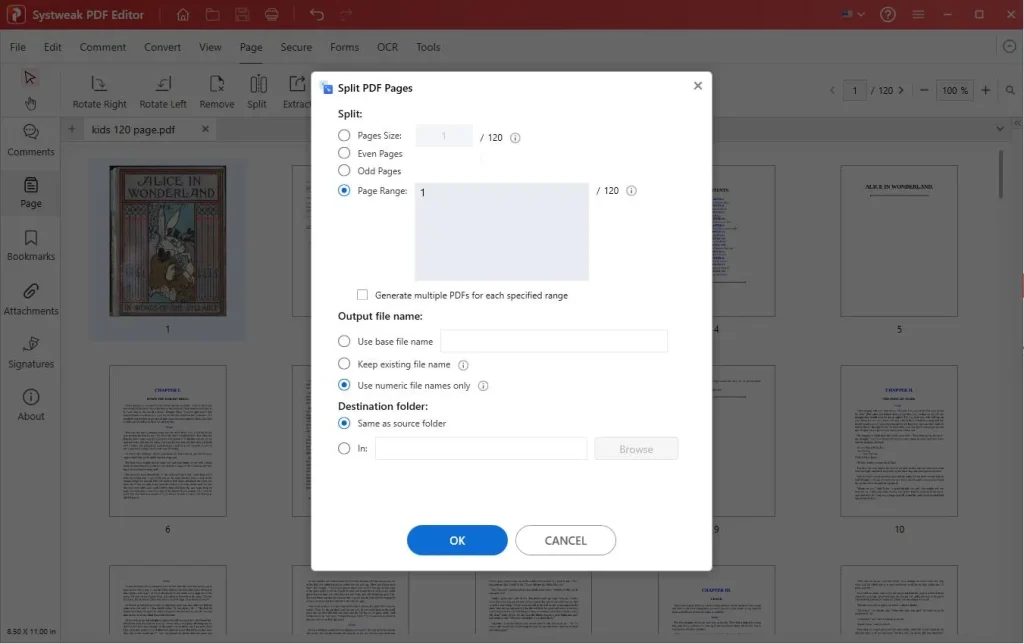
- Merge & Split PDFs: Combine an unlimited number of documents into a single PDF, or split chapters to organize and manage pages.
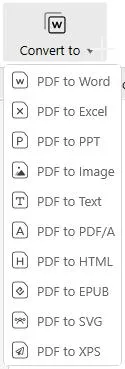
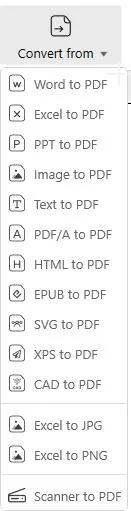
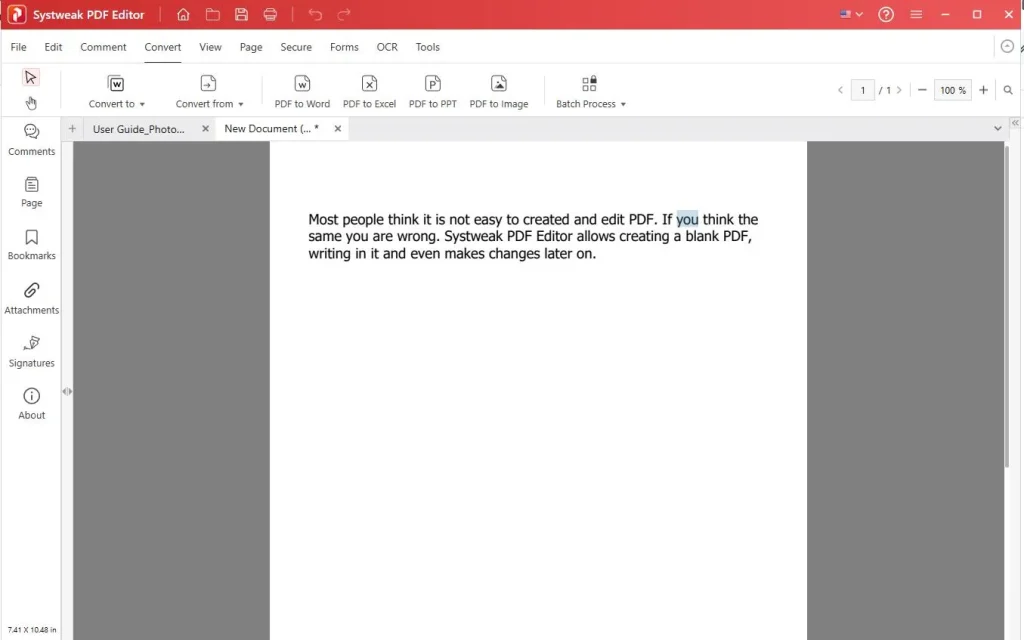
- Convert To & From PDFs: Without any third-party tool, convert PDFs to Excel, Word, PPT, Images, HTML, EPub, etc., and convert back to PDFs without affecting formatting or content.
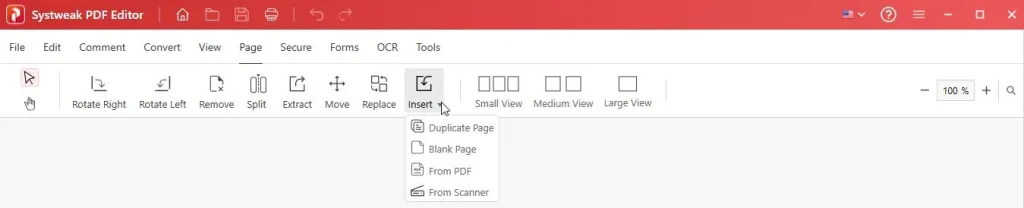
- Page Management: In Systweak PDF Editor, you can move pages, extract a specific page, duplicate pages, add a blank page, and more.
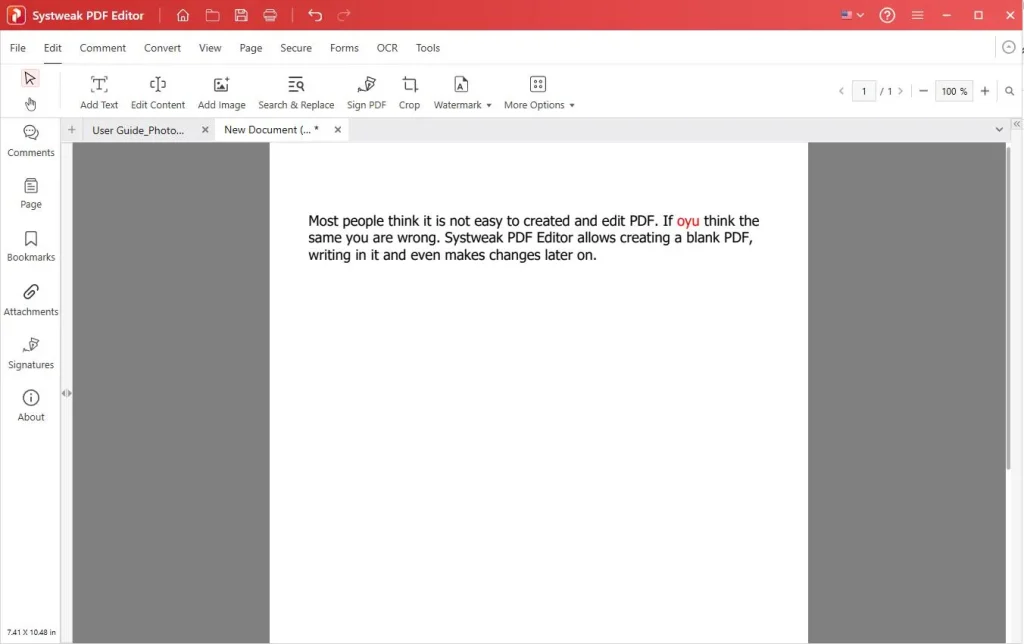
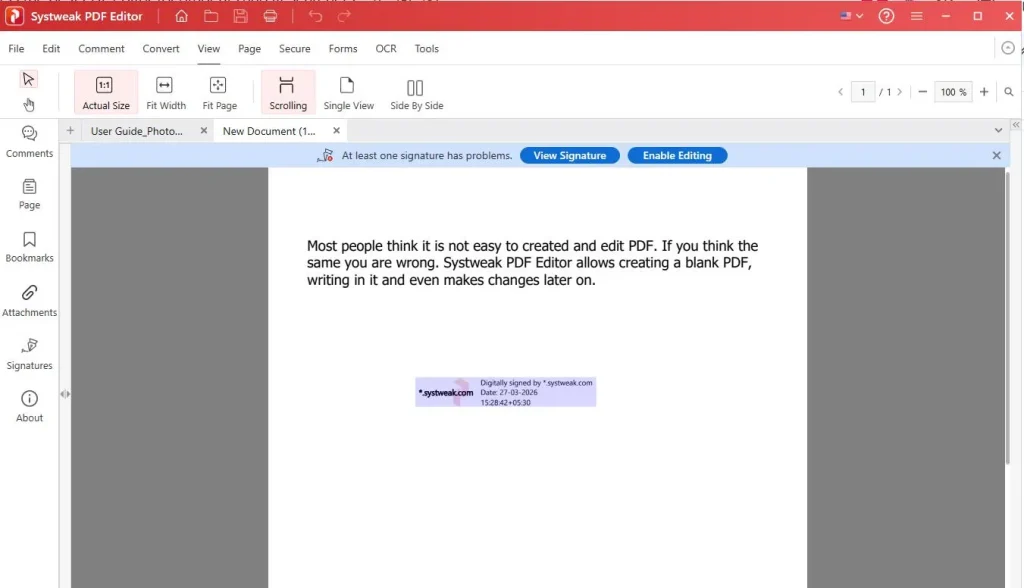
- Edit & Sign PDFs: Add text, images, or digital signatures without any external tools.
How These Features Matter?
Reading about such tools and imagining how they will simplify things sounds good, but as someone who has been working with PDF editors for years, I don’t trust them until I test them myself. That’s why I spent some time using Systweak PDF Editor and used it as a student or researcher would.
I merged different PDF files (lecture notes), converted scanned reports (OCR to make them editable, selectable, and searchable), split chapters, and compressed large files (making them share-ready).
The goal was to test feature reliability, see how much time can be saved, and the accuracy of conversion, compression, editing, OCR PDFs, and other features.
And trust me, the results were beyond my expectations.
I picked three different documents to test Systweak PDF Editor and its features. :
- First was a 10-page lecture note, which comprised text and headings
- Second was a 20-page scanned report.
- Third was a 100-page draft, which had citations, images, and graphs
Unlike other editors that sometimes stumble on a mid-range Windows 10 (Intel i5, 8 GB RAM), this offline PDF editor didn’t crash. It swiftly opened the documents, converted and compressed them accurately.
| Operation Performed | Time Program Took | Accuracy/Quality |
| Converted a PDF document to Word | ~1 min 20 sec | The complete layout remained the same. From footnotes to headings, everything was in place. |
| Merge 5 PDFs | < 1 min | Perfectly merged them and created a new PDF. |
| Compress a 10 MB file. | Under 1 min (avg) | 60% reduction with accuracy. |
| OCR Accuracy (English) | Varies (≈ 1–2 min) | Recognized 92% text and made the text and image editable, selectable, and searchable |
| Edit text and image | Varies depending on the edits you make. They are instantly applied. | No fonts or formatting were changed, and the edits felt natural. |
| Repair corrupted academic PDF | ~ 30 sec | I recovered the complete document and opened it in the Systweak PDF Editor. |
| Batch convert 10 PDFs (~250 pages) | ~ 3 min | Glitch-free batch operations were performed with accurate results. |
| Redaction | Under 1 min | Blacked out data, making it unrecoverable. |
| Protect PDF with password & permissions | < 30 sec | Restrictions and passwords were instantly applied. |
| Metadata removal | < 1 min | Quickly removed metadata |
Without an internet connection, annoying ads, crashes, watermark, I was able to merge, perform batch operations, OCR scanned PDFs, and compress the file.
Annotation & Note-Taking Made Easy
Every student does things differently. Some may underline key points, others may take notes, and a few may want hard copies. Systweak PDF Editor understands this and makes digital annotation simple. When you use this tool and its annotation features, it feels like you are working on a hard copy.
To highlight, underline, strikethrough, draw a freehand line, stamp (custom and preset), add shapes, external attachments, or notes, you need to go to the Comment section. Select the text > tool > customize it, and you are done.
Even on a mid-range PC, it works flawlessly. I was able to highlight, strikethrough, or underline text, add sticky notes, and use other tools while using the trial version.

Every annotation was instantly saved, and it felt like I was working on a printed document.
- How to Annotate a PDF using Systweak PDF Editor?To highlight, underline, draw a freehand line, or add a shape to a PDF, follow these steps:Click the Comment tab > select the required option from the list> drag over the text > in the right pane, choose additional options > preview the changes > click File > Save to apply the changes.
Securing Your Academic Work Offline Is Now Possible
For a student or researcher, a PDF is not just a format for saving their work. It is where they save their months of hard work. That’s why keeping it secure is a must. Systweak PDF Editor outshines here, too.
Without relying on the cloud or uploading any of your documents, you can easily password-protect and set restriction permissions. This keeps your work protected without leaving your trusted system.
While testing, I used different security tools to protect my files. These are:

- Mark Redaction: When you click this feature, you get two options: Mark Regions and Whiteout. You can use either to redact sensitive information, making it unrecoverable.
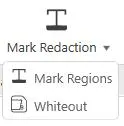
I used it to hide names, IDs. There were different color options to choose from, which made it easy to differentiate and remember what was hidden. Moreover, I was able to search and redact. This means that in a go I was able to find the text in the complete document and redact it. This saved me a lot of time.
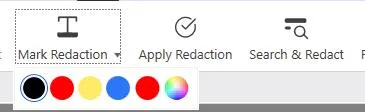
Neither OCR tools nor copying and pasting the text into Notepad could recover the redacted text.
How to redact information in a PDF file?
- Open the PDF file.
- Click Secure > Mark Redaction > select Mark Regions.
Tip – If you want to hide similar text in the complete document, use Search and Redact
- Select the text to redact.
- Click Apply Redaction.
Note – Once you click Apply Redaction, the action cannot be undone, so be sure before applying redaction.
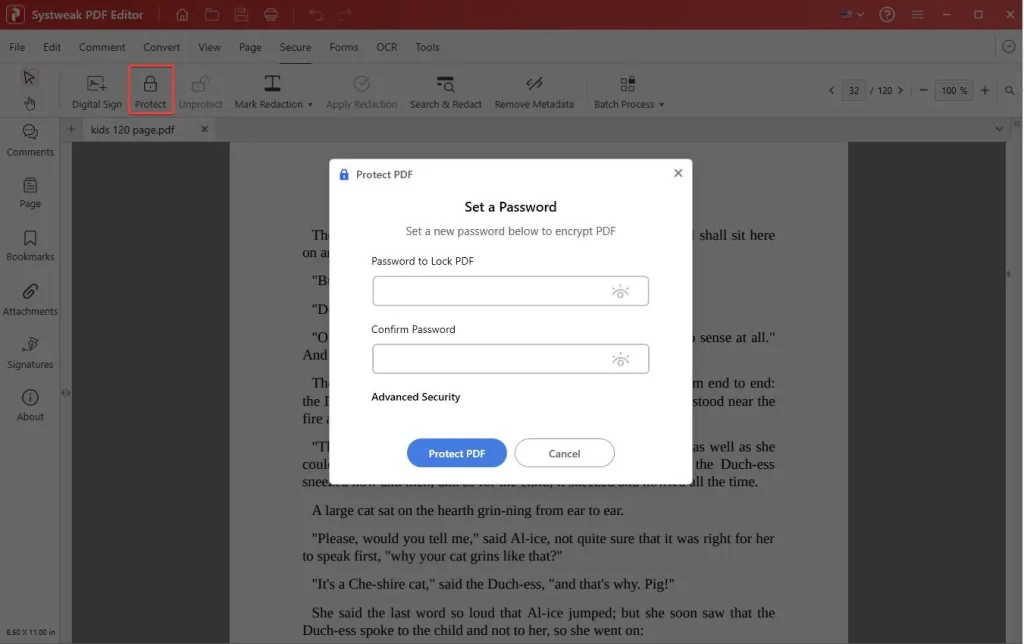
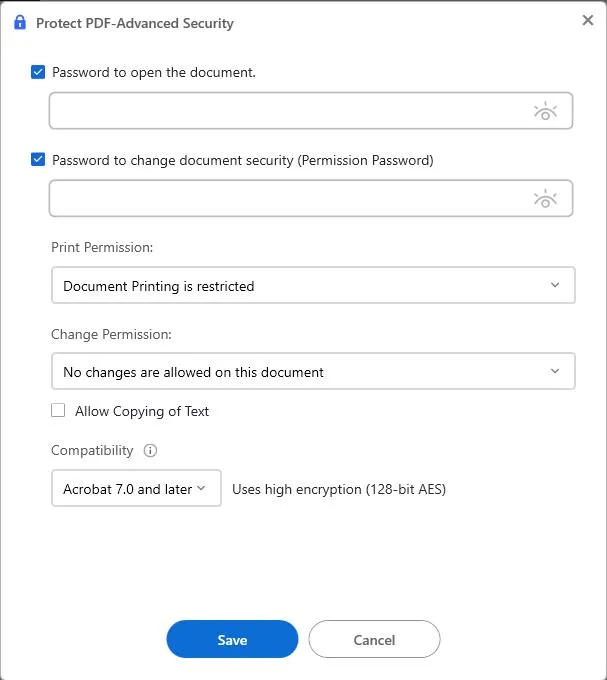
- Protect: This feature lets you password-protect the document and even set restriction permissions. Click Protect, set and confirm the password.

After that, click Advanced Security, set the permission, and that’s it; the document was secured. This made it perfect for sharing drafts or collaboration. Researchers can use the feature of restricting the printing and copy to not allowing them to copy or print the data.
- Remove Metadata: This excellent feature is often hidden in other PDF editors, making it difficult to find and use. Systweak PDF Editor understands the importance of this feature, and you find it right under the Secure tab.To use it, you just need to open the document > click Remove Metadata > and click Yes after reading the prompt, and that’s it.
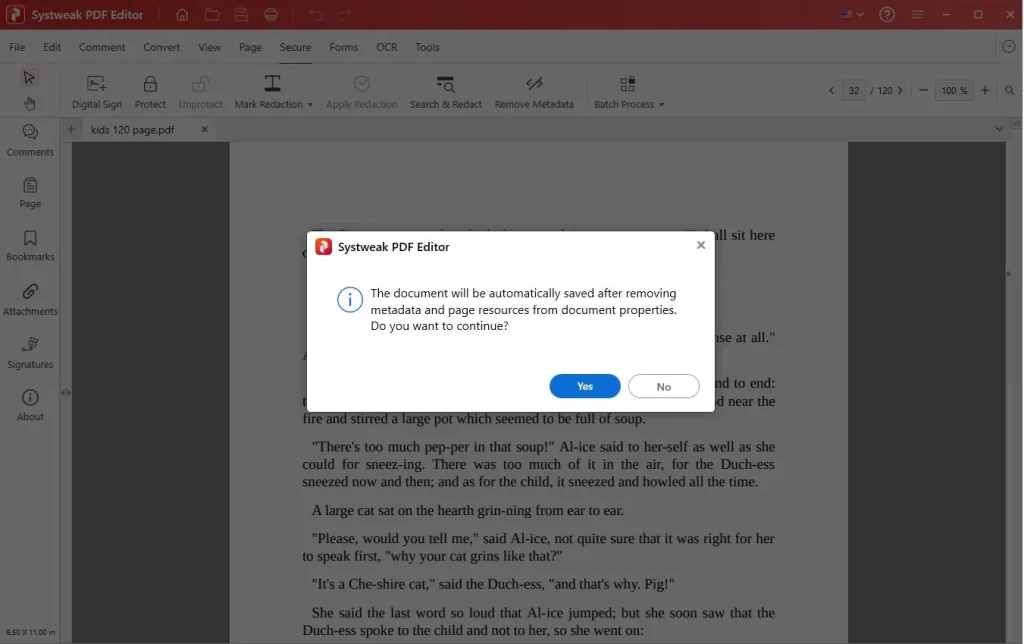
The hidden data, like author names or timestamps, is stripped.
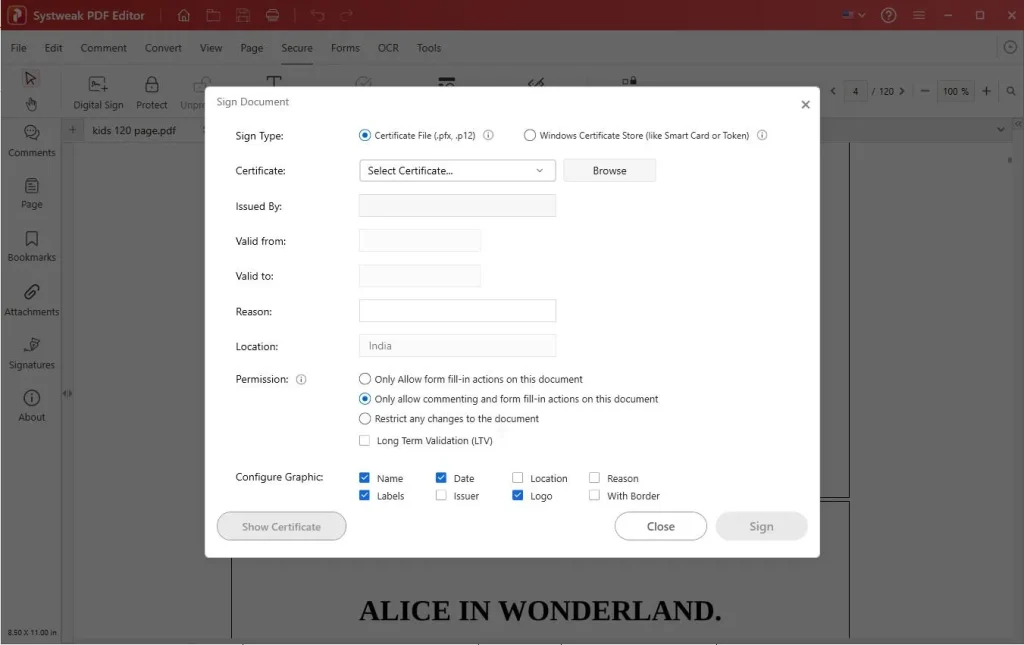
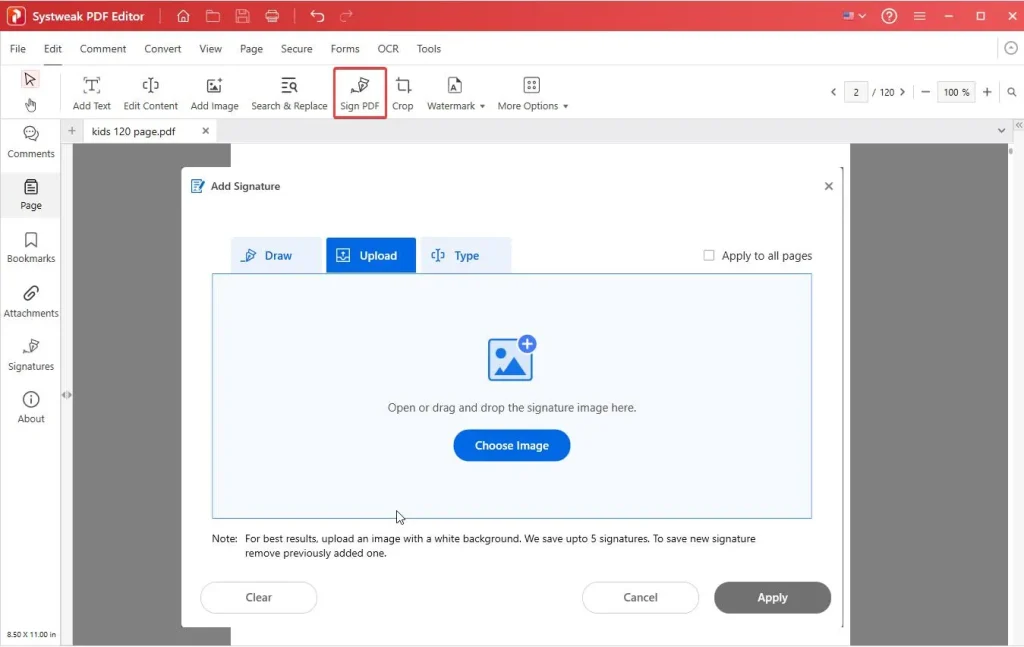
- Digital Signatures: When you have a sensitive document that you would want to securely authenticate, ensure its integrity stays intact, and want it to be legally binding add digital signature. To do so, click the Digital Signatures option, use a digital certificate (.pfx/.p12), add it, and authenticate your work.
Alternatively, you can even e-sign documents by drawing your signature, uploading an image, or typing it.
This small convenience keeps your workflow smooth and submission-ready when you’re in a hurry or can’t print the document.
- Repair: I didn’t expect this feature to be in the Systweak PDF Editor, and for students and researchers, it’s a blessing in disguise. If your PDF file is corrupt, don’t worry— use the built-in repair function and see the magic. I had a 12-page, corrupt report that this tool was able to repair in less than a minute.

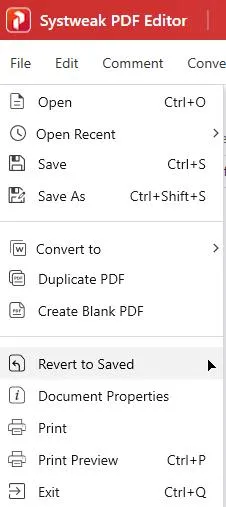
- Revert to Saved: Another super useful feature that students will like the most is reverting to the last saved version. If you have over-edited the document and haven’t saved the changes, you can undo all of them using the Revert to Saved feature. This saved me time, and the limit on the Undo feature was not there.
In today’s world, where everything is connected to the internet, keeping your sensitive data is difficult. But with Systweak PDF Editor, it is possible. This offline tool not only keeps your data on your system but also lets you password-protect, redact, set permission restrictions, remove metadata, and secure it before sharing it with anyone, helping you prevent others from harming your content.
OCR Scanned Documents and Images and Make Them Editable
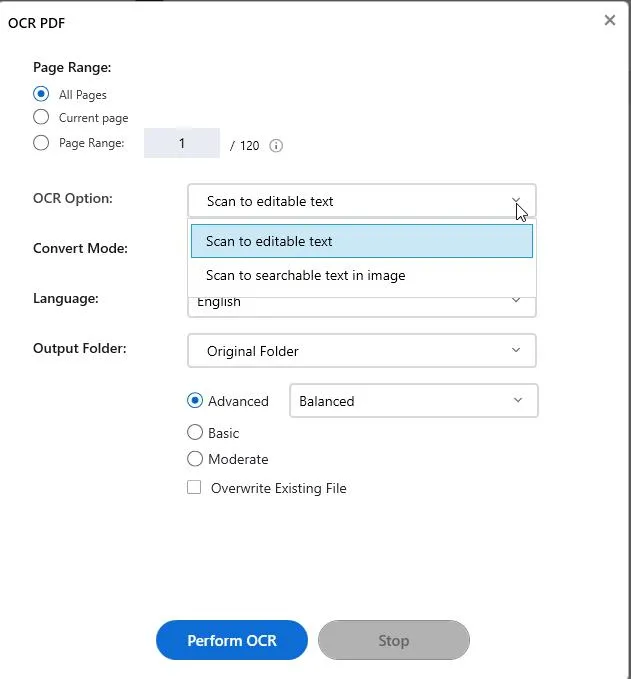
From securing documents to making scanned documents editable, Systweak PDF Editor offers everything. Whether you have scanned documents you want to scan and edit, do it all with this tool. The OCR function correctly recognizes text and lets you edit it without changing the formatting or font style.

I used OCR to convert my handwritten notes into editable, searchable text. This means no more relying on Word or converting the document to Word for an edit. Now, everything can be done from this tool.
Convert, Create, Compress, Protect, Unprotect, OCR in Batch, and Save Time
Students and researchers often have dozens of files that they either want to compress, protect, or OCR. With the batch process feature, Systweak PDF Editor allows repetitive tasks to be taken care of in one go. I was able to process 10 PDFs (approx. 250 pages) for conversion in under three minutes with complete accuracy.
Compress Without Compromising Quality
Most PDF tools fail when it comes to compressing the file. They either compress the file to the extent that the content and formatting change, or they compress it to the bare minimum. Systweak PDF Editor excels here, too as it gives different compression levels to select from.
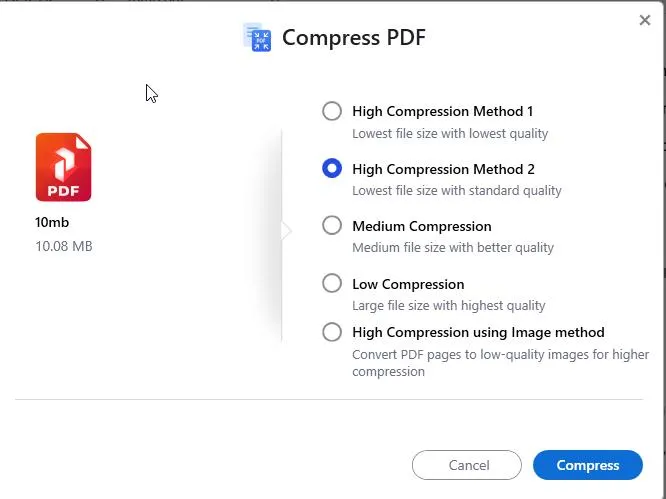
I was able to compress a 10 MB PDF presentation to 3.9 MB without compromising image quality or formatting.
Edit PDFs Like You’re in Word
This editor makes editing PDFs super easy. You can edit text, replace images, add annotations, page number, batest number, header and footer, watermark the document, add a password, convert, compress, merge, extract data and more without breaking formatting. I edited a 15-page research draft that mixed text, citations, and figures. The text boxes adjusted perfectly, and even the font spacing stayed consistent.
Case Study: How Systweak PDF Editor Simplifies the Work of a Research Group at Delhi University
To ensure the tool is helpful for students and researchers, I connected with postgraduate students from Delhi University. Asked a few questions like – how they manage their research papers, scanned field notes, lab reports, journal articles, etc.
They mentioned that collecting data is easier than managing PDFs because they do not have to struggle with different tools. If they pick a Free PDF Editor, it allows them to highlight text, merge files, edit text, allow redact information, repair PDFs, or extract. And if they end up buying that, it is too heavy on their pocket and not easy to use.
Due to this, they moved to online tools, but the output they get with these tools is not what they want. This is when I suggested that they use Systeak PDF Editor.
They tried, upon my request, and one student even told me –
“It feels like the tool was designed keeping students’ pain points in mind. I always hated working with PDFs as they are not easy to edit, but after using this tool, now I can get all my work done effortlessly.”
They even shared data:
| Operation Performed | Before | With Systweak PDF Editor |
| Merging notes and journals | 25–30 mins when using 2 tools | <5 mins |
| OCR on scanned reports | ~70% accuracy | ~92% accuracy |
| Compressing PDFs | 10–15 MB (rejected) | 4–5 MB (accepted instantly) and compressed with accuracy |
| Adding comments & highlights | Cluttered tools | Smooth and different options. |
| Password-protecting project data | Unreliable | Password protection, redaction, and metadata removal all become easy |
Final Takeaway – A Tool That Makes Students and Researchers’ Lives Easy
Systweak PDF Editor is not just any PDF editor. It is an affordable alternative to Adobe that helps students and researchers read, edit, annotate, compare documents side by side, count words, protect their documents, compress, merge, extract, split, move, and OCR scanned files.
All this is done with accuracy and without the need to upload any document to external servers that can jeopardize information. This tool works flawlessly and is a perfect combination of function, affordability, and security.
Whether you are a student, reviewer, or researcher, the tool will let you focus on your work as it will take care of formatting and your PDFs. It is not just another utility; it is the tool. Your study buddy for PDFs.